Help Guide to help you navigate the chatroom, and the chatroom settings, with some nifty tips and tricks to give you the best experience!
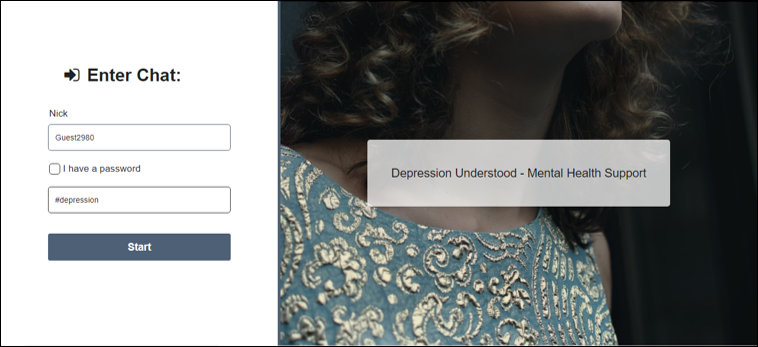
Choose a nickname, if you have registered your nickname already, then check the I have a password box and enter your password.
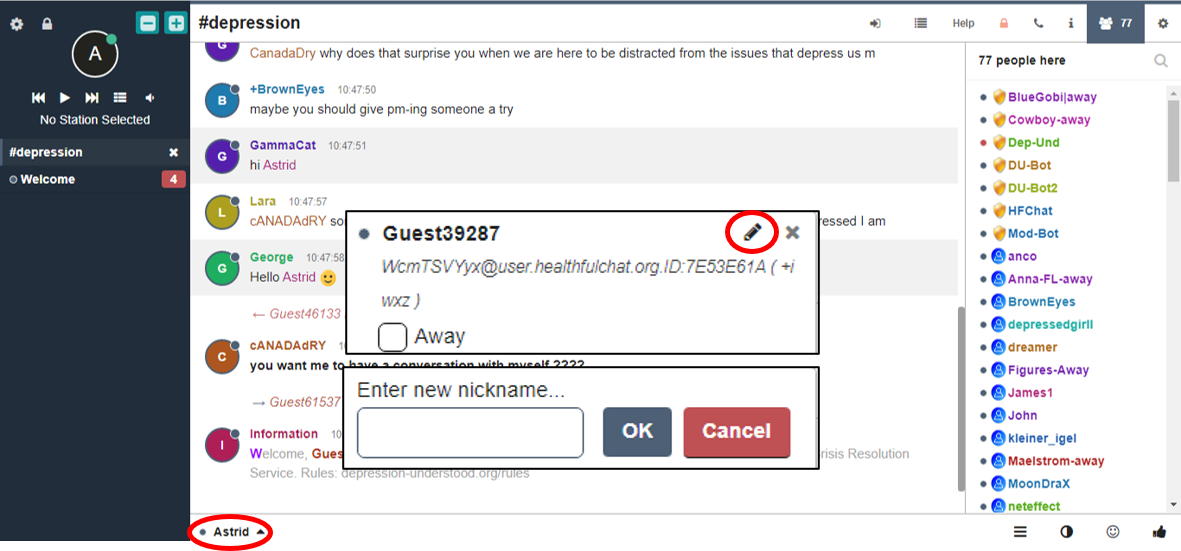
To change your nickname, select on your name to the left of where you type your messages, it will bring up a second box like shown in the picture, click on the pen icon bring up the box to change/edit your nickname.
Alternatively you can type /nick new-nickname-here
Please remember we do have a ONE nickname rule.
It is now easier to register your nickname!
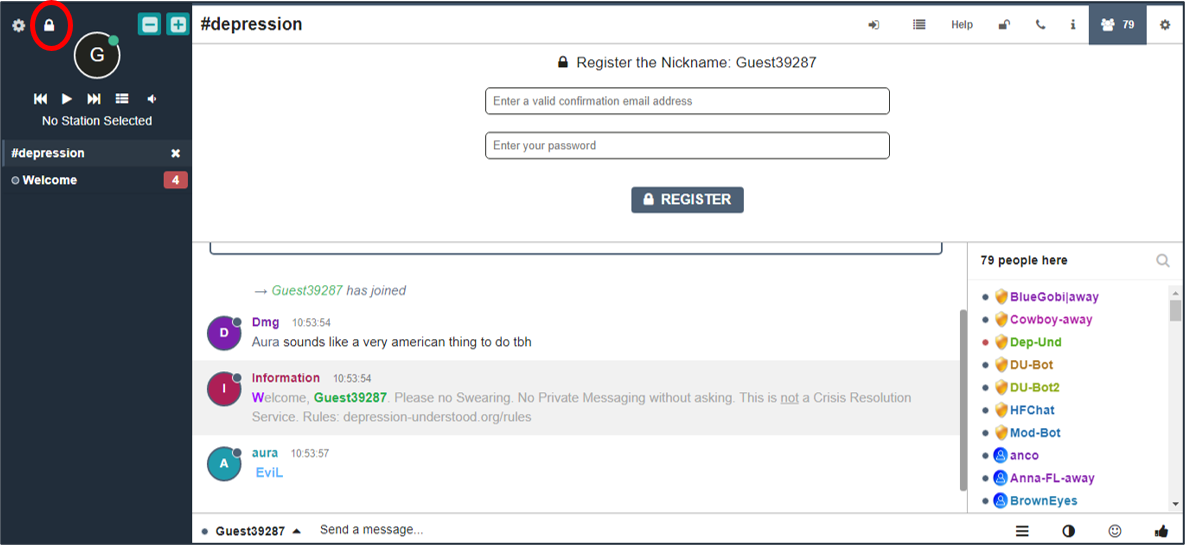
To register your nickname click on the padlock icon on the left hand side, it will bring up the box shown in the image.
Enter your email address and the password you want to use here, click on register and then go and check your emails.
You will receive an email with a confirmation code that you need to enter in order to complete the registration process. We advise you copy and paste the code in a PM to yourself.
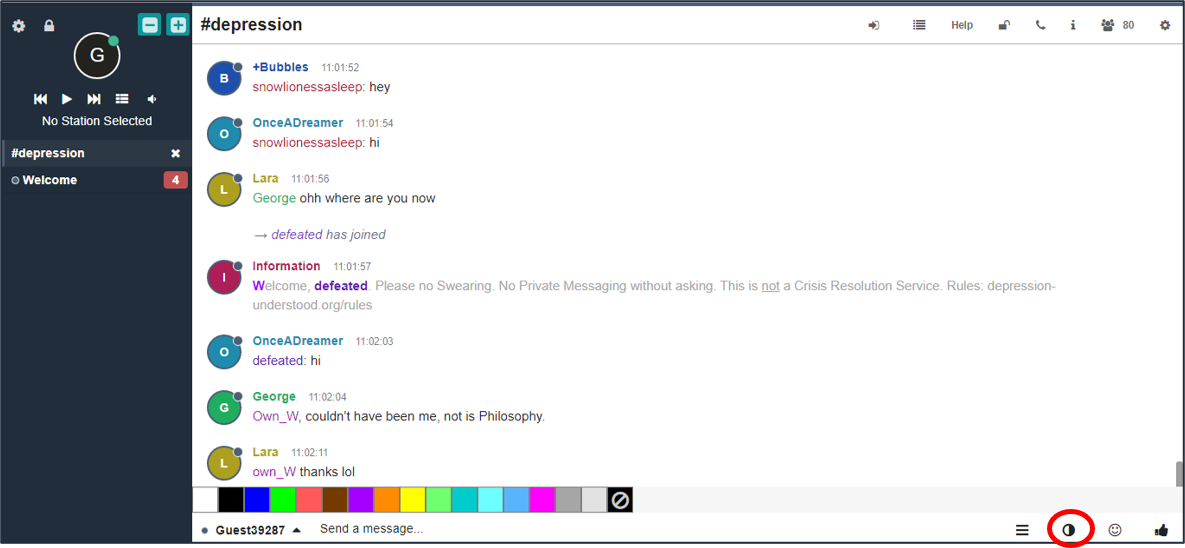
To change your font colour select the icon circled in red.
Please note this client currently does not have options for bold or underlined text.
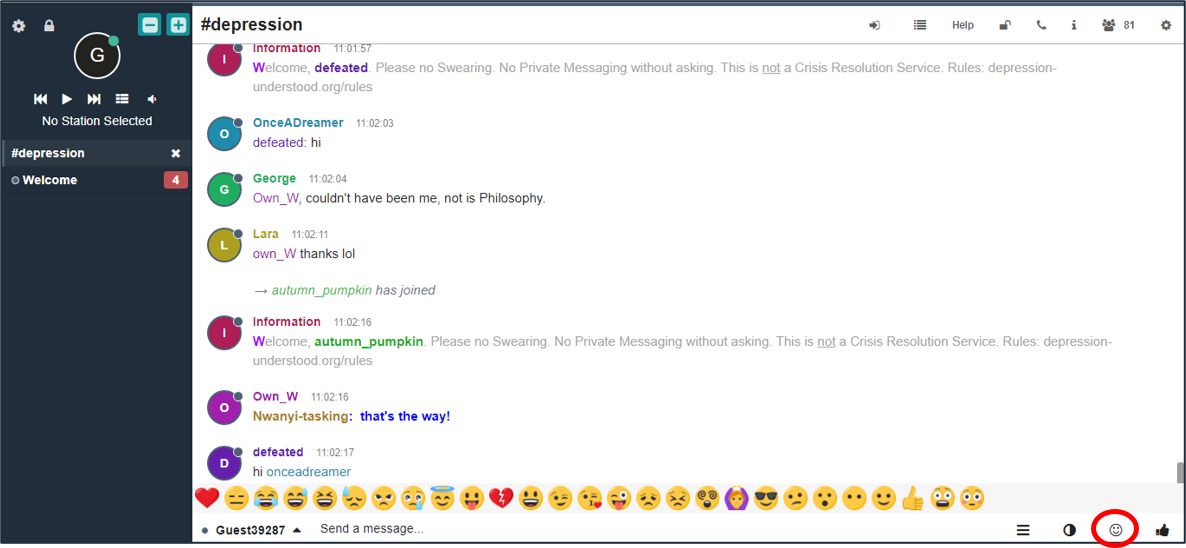
To view the standard emoji, click on the smiley face icon.
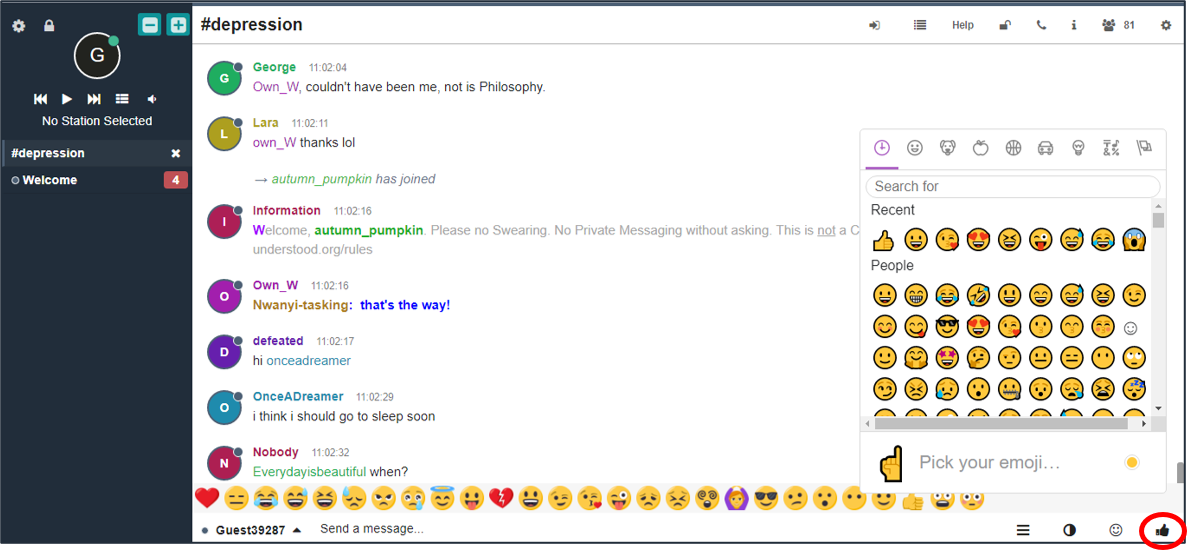
We have added more emoji to the chat, to view an extensive selection please hit the thumbs up logo, and from there select your emoji.
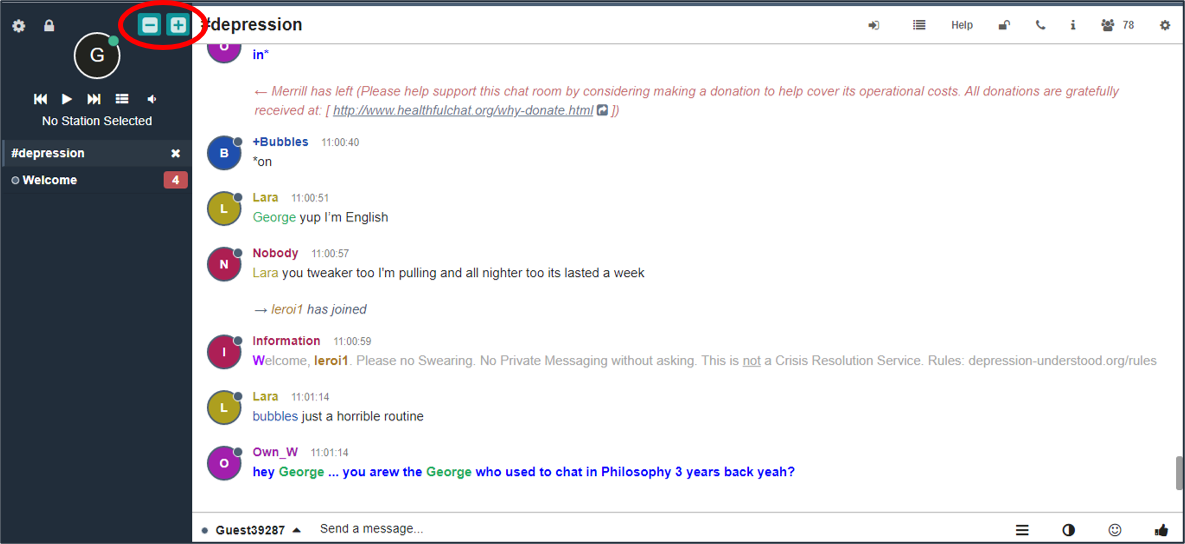
To increase or decrease your font size, please select the + - buttons shown.
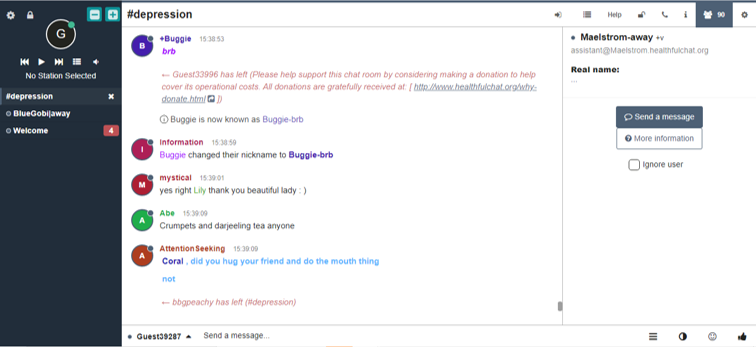
To put a user on ignore you can click on their username in the list and select the Ignore user check box.
Alternatively you can type /ignore username
To Unignore the user simply uncheck the box or type /unignore username
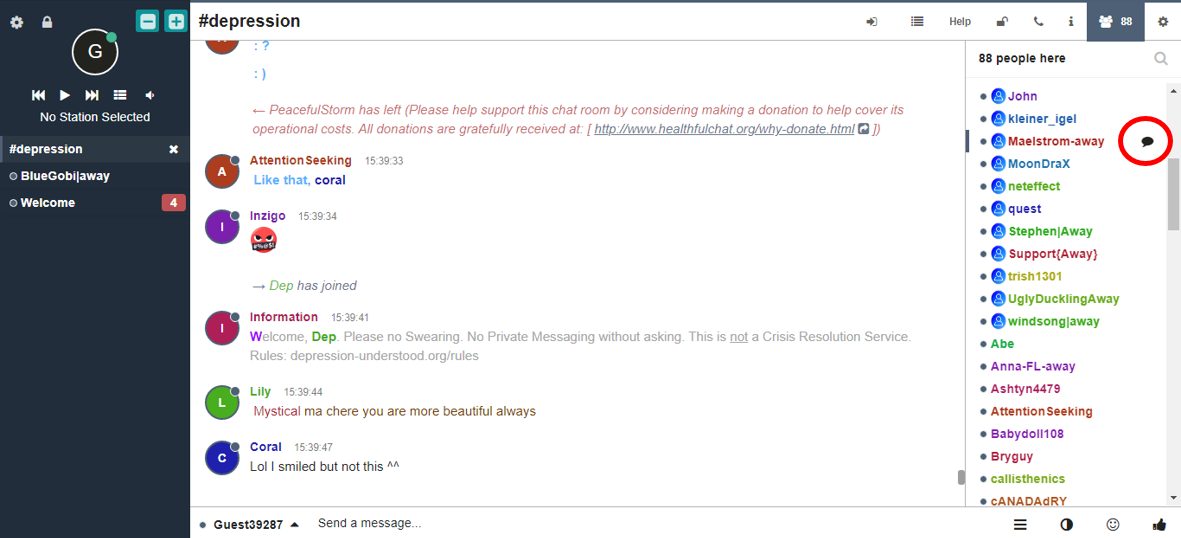
To send someone a PM you can hover on their name and a speech bubble will appear, if you click on the speech bubble it will open a PM.
Alternatively you can click on the username of the person you wish to PM and select Send a message.
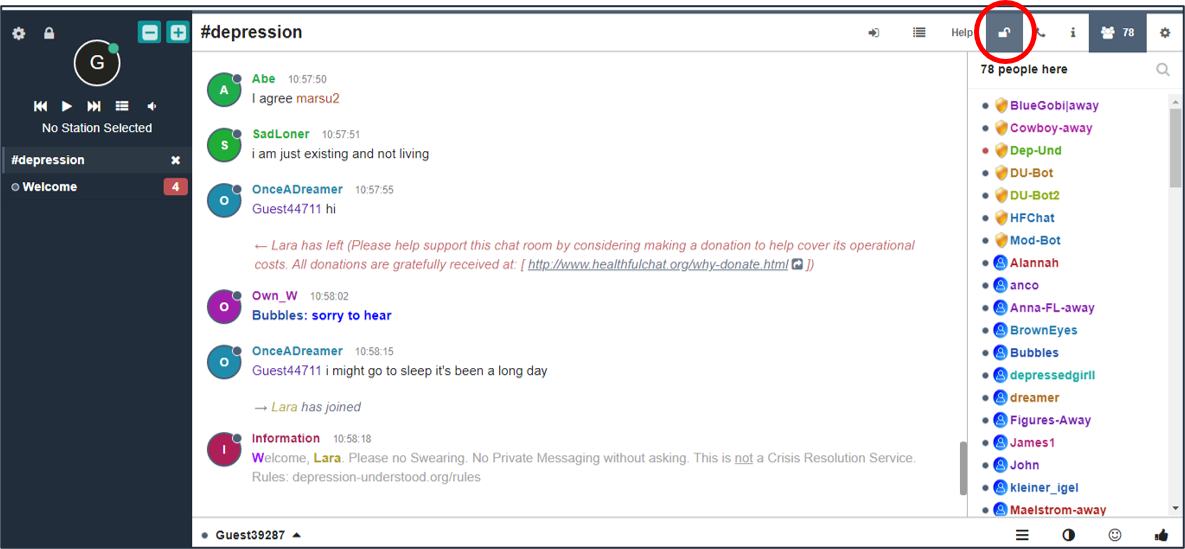
Another new feature we have added, is the ability for you to turn on / off the ability for people to private message you.
Please note if a moderator needs to speak to you about something you will be expected to turn your PMs back on by clicking the button again, if you fail to respond to a moderators request to answer the PM then you could see yourself removed from the room.
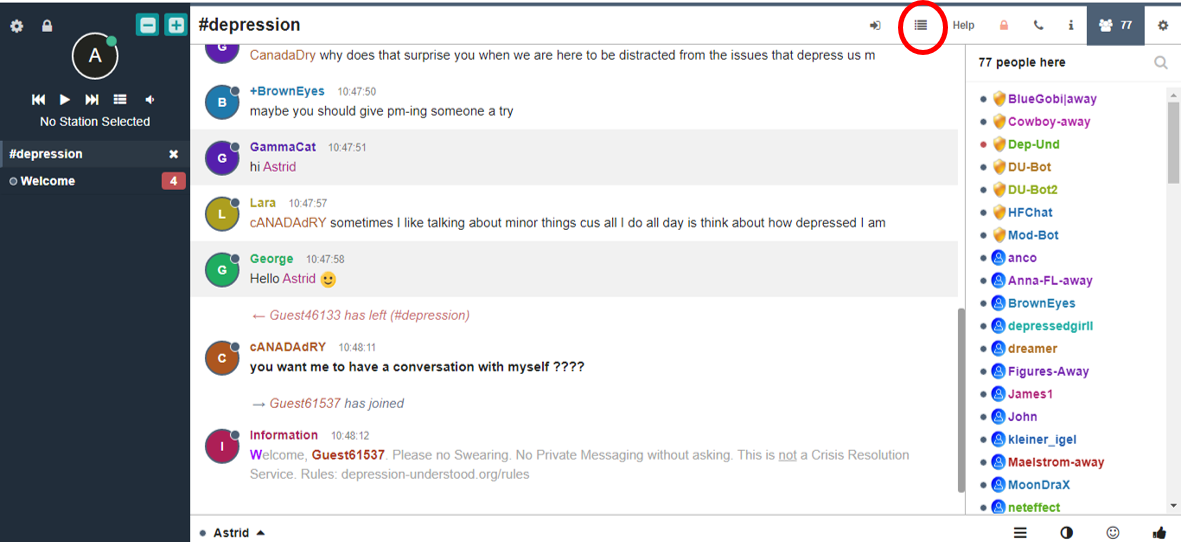
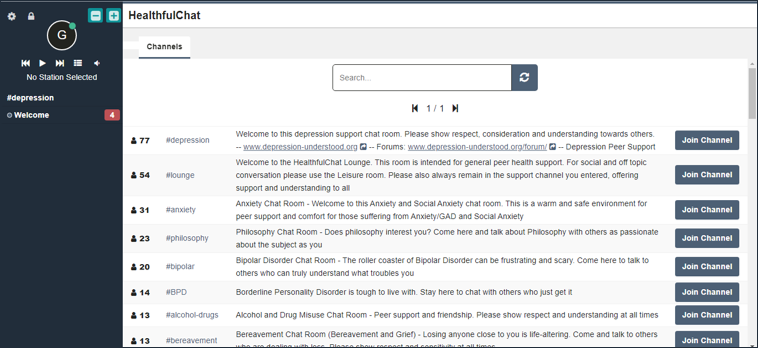
To view a list of the available rooms we have on the healthfulchat network click the icon shown, it will bring up a list as shown in the second image.
To join any of these other rooms simply click on the Join Channel button.
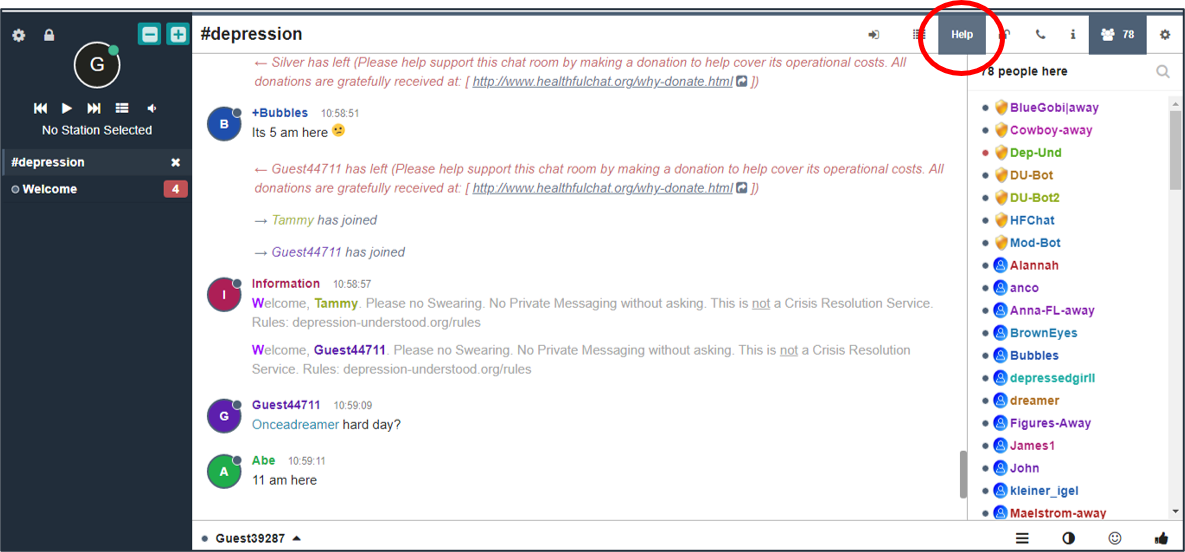
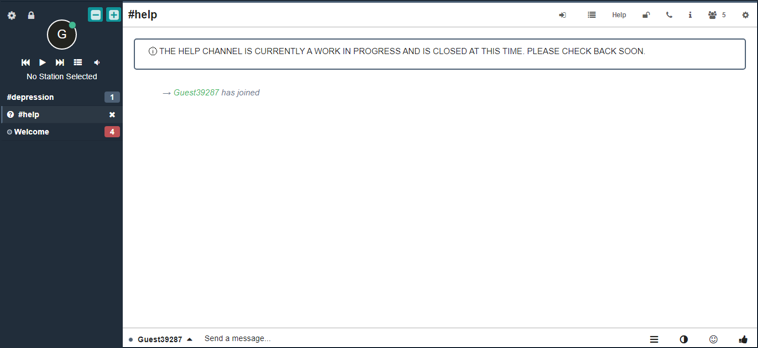
One of the new features we have is a help button, if you need assistance from a moderator, or technical help you can click on the help button and it will take you into a new room called #Help. Here you will be able to ask moderators any questions you have, or report people.
Please note it may take a few minutes for a moderator to respond if they are busy with something else, please be patient and if you get no response try pinging them or PM them.
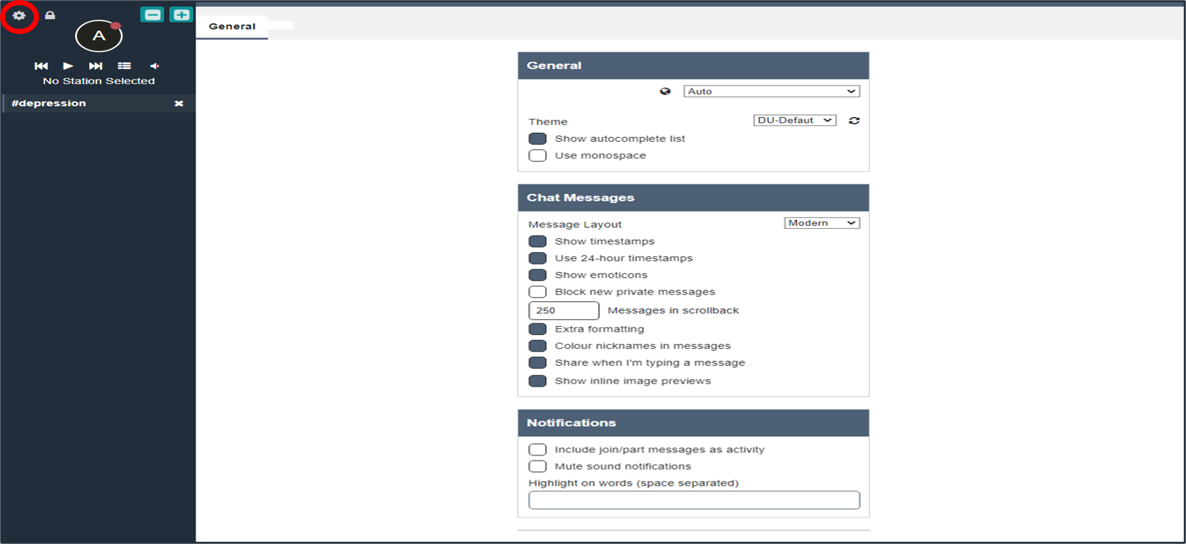
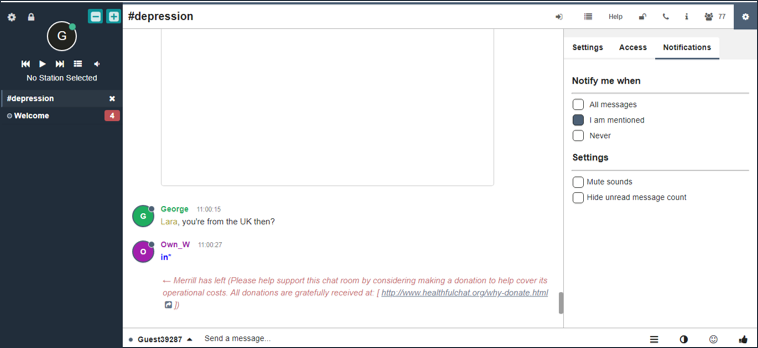
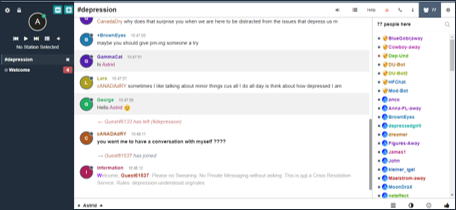
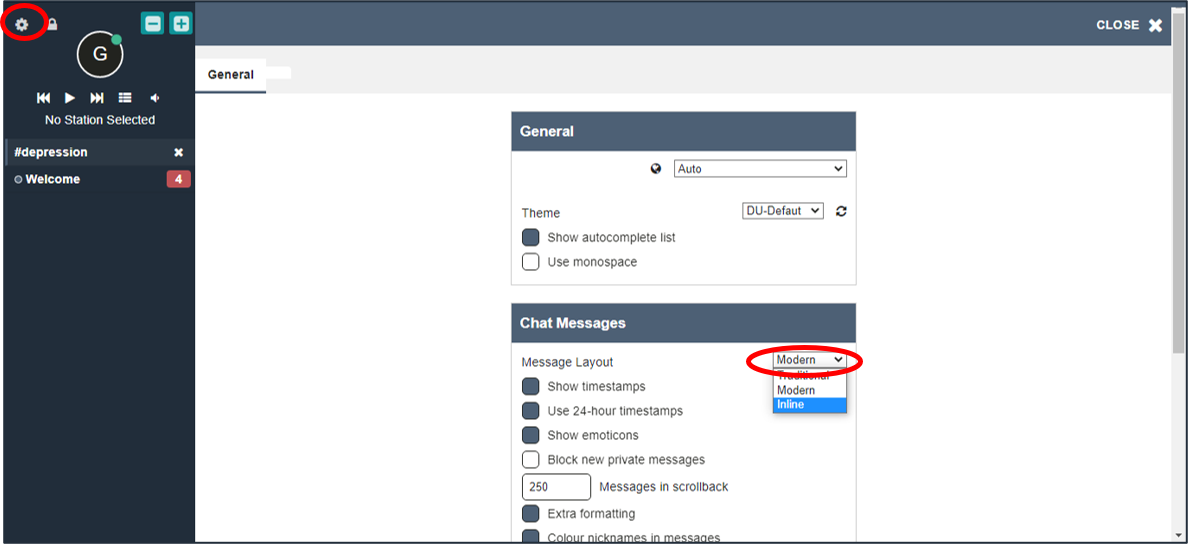
If you click on the cog icon on the left hand side it brings up the main settings menu.
Here you can change the Theme layout, choose a different font, Change the message layout, increase the amount of scroll back you have in the room, edit if you want people to be able to see when you are typing a message.
You can also decide if you want the images or videos to show in the chat or PM when someone posts a link.You can set highlights for different words so you are alerted when somebody says that word. Aswell as some other options.
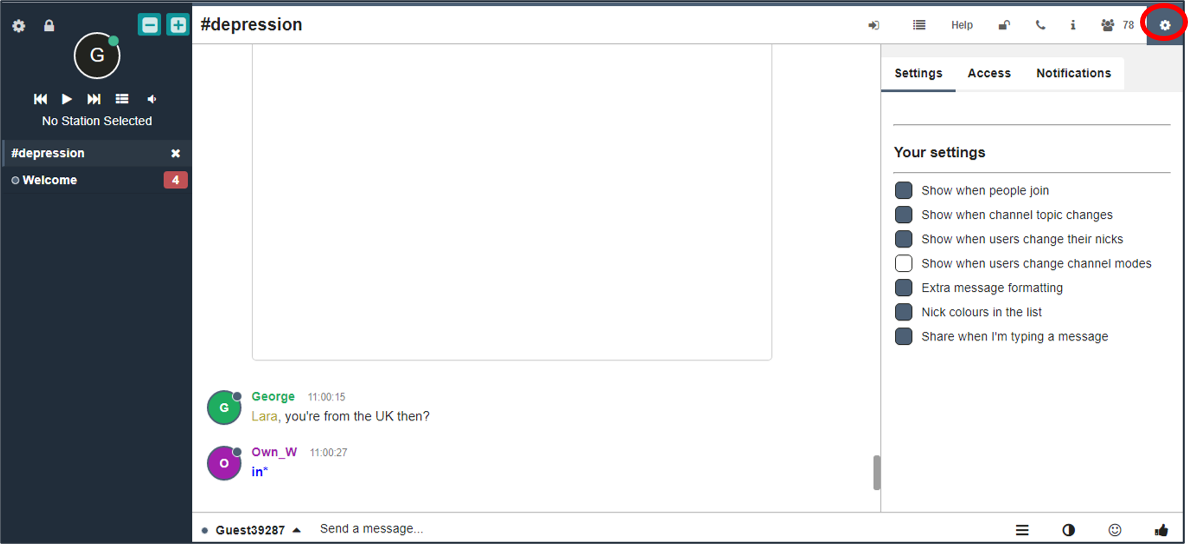
There are some different settings on the cog icon on the right hand side, You can turn off the bar that shows when you are typing in here, and some other settings.
Under the notifications tab it will tell you every time someone says your name, You can also turn off your ping sound in here if you wish.
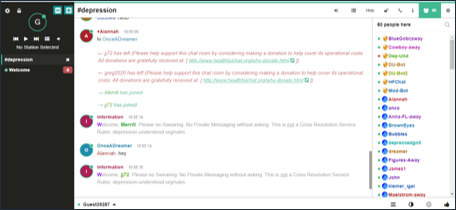
Default
Light Brown
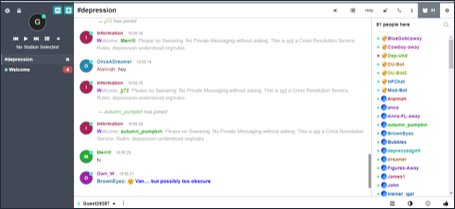
Light Blue
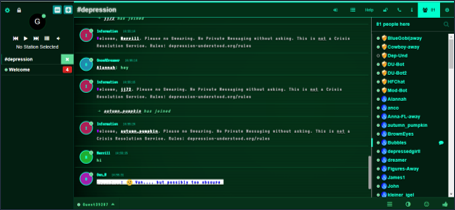
Black / Green
Grey
Old Green
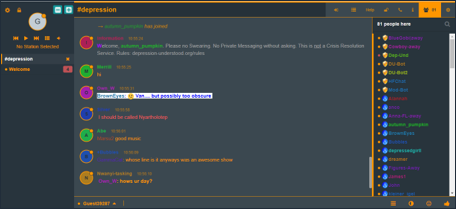
Yellow
Dark Mode
Dark Mode 2
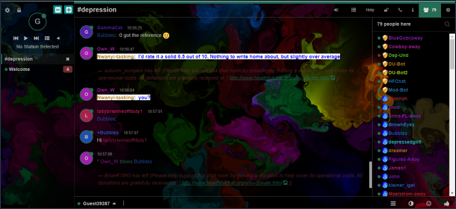
Dark Fluid
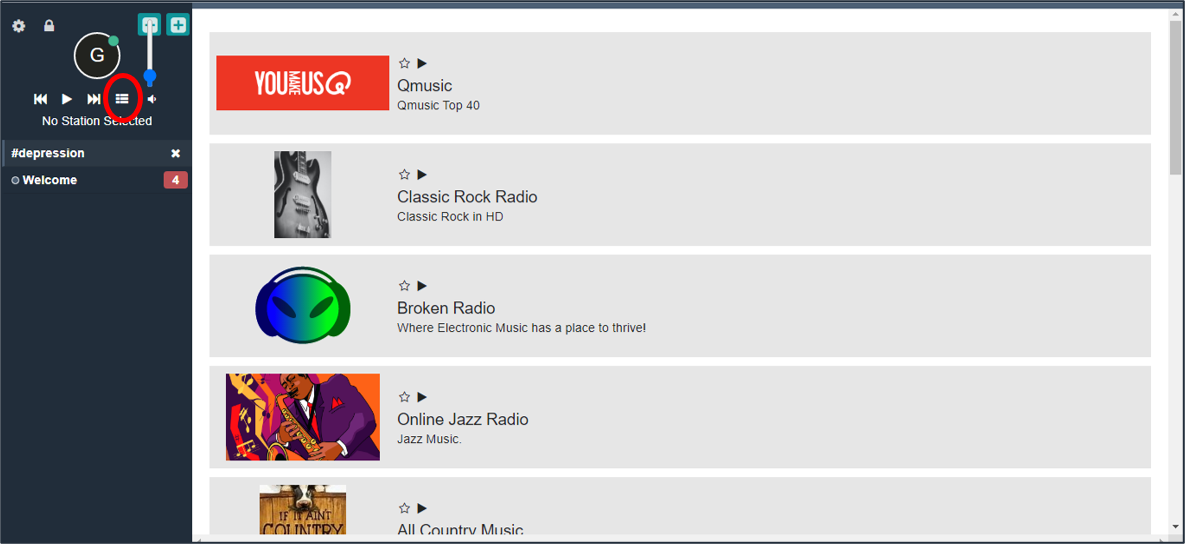
One of our new features is an inbuilt radio player. To view the stations we offer, click on the icon shown and select your station.
One added bonus of this radio player, is that if you are on a mobile device, and are having problems with the connection to the room, if you play the radio, even if your phone goes to sleep it will keep you in the room. Even if the sound is turned off on your device.
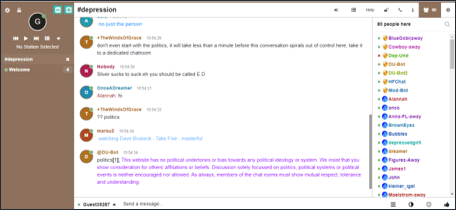
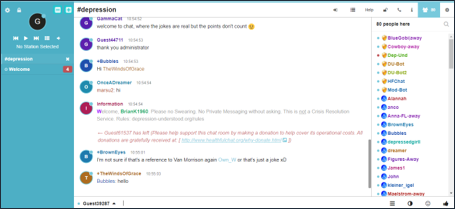
If you would like to maximise the amount of text space, you can click on the settings cog shown, and under message layout, select Inline.
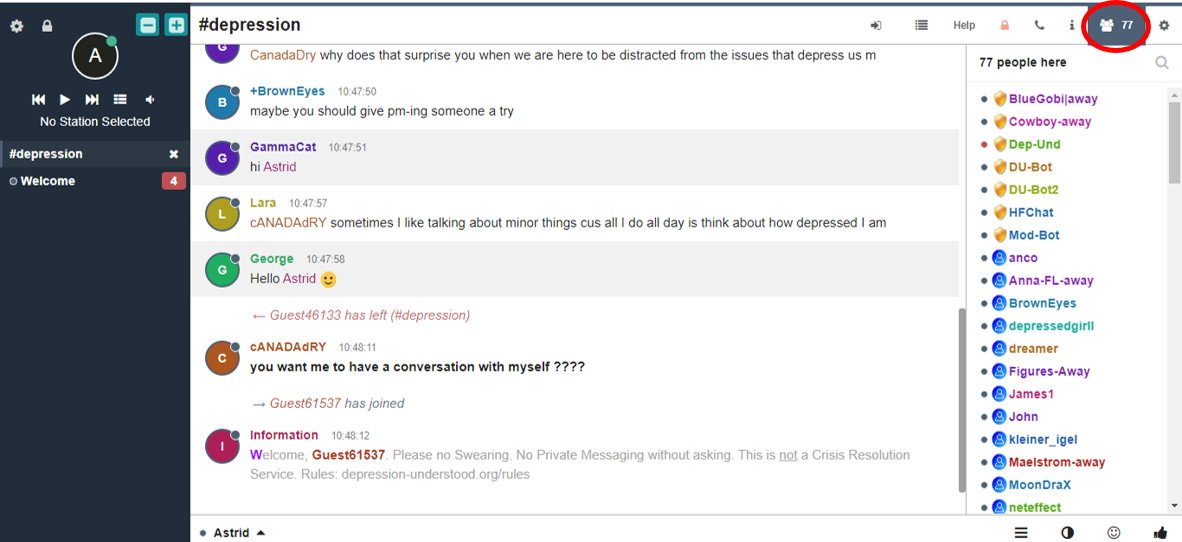
You can also minimise the user list by clicking on the icon shown in this image.
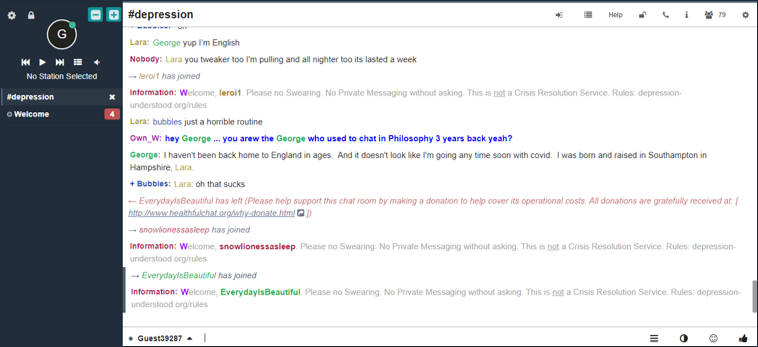
This image shows you what the chat would look like if you applied those settings. You may also find you get better results if you turn your phone to landscape mode.
Please also see the section about using the radio for further advice.